
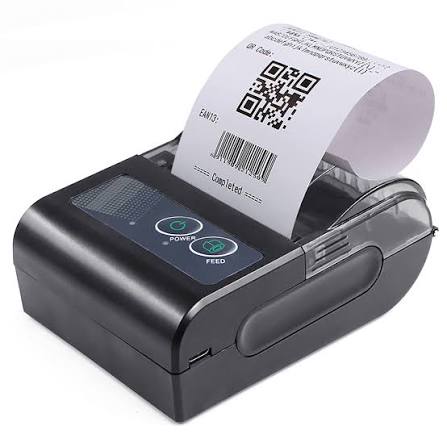

Thermal printers are widely used in retail, hospitality, logistics, healthcare, manufacturing, and other industries that depend on reliable receipt and label printing. They help businesses produce clear text, barcodes, product labels, and transaction records quickly. However, like other electronic devices, thermal printers require regular maintenance to maintain consistent performance and prevent avoidable printing problems.
Dust, adhesive residue, unsuitable printing materials, incorrect settings, and worn components can gradually affect print quality. Without proper care, businesses may experience faded text, incomplete images, barcode scanning difficulties, or frequent paper jams. Following a suitable maintenance routine helps extend equipment life and maintain dependable printing results. Whether used for receipts or product identification, a properly maintained Thermal Printer can support smoother daily operations and reduce unnecessary interruptions.
Why Thermal Printer Maintenance Is Important
Thermal printers use heat to create images on specialized paper or transfer ink from a ribbon onto compatible materials. Because the printing process depends on direct contact between the printhead and the printing media, cleanliness and correct operating conditions are essential.
Regular maintenance provides several benefits:
- Consistent print quality: Cleaning and proper setup help produce clear text, graphics, and barcodes.
- Reduced printing interruptions: Routine inspections can identify problems before they affect daily operations.
- Longer component life: Proper care helps reduce unnecessary wear on important parts.
- Lower maintenance expenses: Preventive care can help avoid some costly repairs and premature replacements.
- Reliable barcode printing: Clean printheads and suitable media support accurate barcode production.
- Improved productivity: Employees spend less time dealing with preventable printing issues.
A simple maintenance schedule can make a noticeable difference, particularly in businesses that print large quantities of receipts or labels.
1. Clean the Thermal Printhead Regularly
<AsyncImage query=”thermal receipt printer open printhead cleaning maintenance close up” aspectRatio=”16:9″ width=”100%”/>
The thermal printhead is one of the most important components of a thermal printer. It contains small heating elements that create text, graphics, and barcodes on the printing material.
Over time, dust, paper particles, adhesive residue, and other contaminants may accumulate on its surface. This buildup can interfere with heat transfer and cause uneven printing.
Recommended Cleaning Procedure
- Turn off the printer and disconnect its power supply.
- Allow the printhead to cool if the printer has been operating recently.
- Open the printer cover according to the manufacturer’s instructions.
- Use a suitable lint-free cleaning cloth or approved printhead cleaning material.
- If recommended by the manufacturer, use an appropriate printhead cleaning solution or isopropyl alcohol at the specified concentration.
- Gently clean the printhead surface without applying excessive pressure.
- Allow the cleaned area to dry completely before closing the printer.
- Reconnect the power and print a test receipt or label.
Avoid touching the printhead with bare fingers because oils and residue can affect its surface. Never use sharp objects or abrasive materials to remove stubborn dirt.
2. Use High-Quality and Compatible Printing Paper
The quality of printing media directly affects the performance of a thermal printer. Direct thermal printers require heat-sensitive paper or labels, while thermal transfer printers use compatible media and ribbons.
Low-quality or unsuitable materials may produce inconsistent results and contribute to unnecessary residue buildup.
When selecting printing paper, consider:
- Correct paper width and roll dimensions.
- Compatibility with the printer model.
- Suitable thermal coating quality.
- Appropriate thickness and surface characteristics.
- Reliable performance for the intended application.
For receipt printing, businesses should select thermal paper designed for the printer’s specifications. For barcode and product labels, the material should match the required printing technology and environmental conditions.
Using compatible supplies helps maintain clear output and reduces the possibility of feeding or printing problems.
3. Keep the Printer’s Interior Free From Dust
<AsyncImage query=”open thermal label printer interior paper dust cleaning maintenance” aspectRatio=”16:9″ width=”100%”/>
Dust and paper debris can accumulate inside a printer, especially in busy commercial environments. If particles collect around the printhead, rollers, or paper path, they may affect media movement and print consistency.
To keep the interior clean:
- Switch off and unplug the printer before cleaning.
- Remove the paper roll and any loose label material.
- Use a soft, lint-free cloth to remove accessible dust.
- Follow the manufacturer’s instructions for cleaning internal components.
- Avoid spraying cleaning liquids directly into the printer.
- Check the paper path for adhesive residue or small debris.
Businesses operating in warehouses, factories, or other dusty environments may need to inspect their printers more frequently.
4. Inspect and Clean the Platen Roller
The platen roller is a component that helps move printing media through the printer while maintaining contact with the printhead.
If the roller becomes dirty, worn, or damaged, the paper may not feed evenly. This can result in skewed printing, inconsistent positioning, or repeated feeding problems.
Roller Maintenance Tips
- Inspect the roller regularly for visible dirt and damage.
- Remove paper particles and adhesive residue using an approved cleaning method.
- Avoid using sharp tools that could scratch the roller surface.
- Check whether the roller rotates smoothly.
- Arrange replacement if the roller becomes excessively worn or damaged.
A clean and properly functioning platen roller helps maintain consistent media movement and printing alignment.
5. Load Paper and Labels Correctly
Incorrect media installation is a common cause of thermal printer problems. A roll that is loaded in the wrong direction may not print correctly, while poorly aligned labels can cause feeding errors.
Before loading a new roll, check the printer’s instructions and confirm the correct media orientation.
Follow these basic steps:
- Open the printer cover.
- Remove the empty core or remaining media.
- Place the new roll in the correct position.
- Confirm that the printable side faces the printhead.
- Align the paper or label material with the guides.
- Feed the media through the designated path.
- Close the cover securely.
- Print a test document to verify proper alignment.
For label printers, ensure that the media sensor is correctly positioned and configured for the label type being used.
6. Maintain Proper Printer Temperature and Operating Conditions
Environmental conditions can influence thermal printing performance. Excessive heat, moisture, dust, and direct sunlight may affect printing materials and electronic components.
Thermal paper is particularly sensitive to unsuitable storage conditions. Exposure to heat or sunlight can cause premature darkening or reduce the readability of printed information.
For better equipment care:
- Place the printer in a clean and dry location.
- Avoid direct exposure to sunlight.
- Keep it away from excessive heat sources.
- Follow the manufacturer’s recommended operating temperature and humidity ranges.
- Maintain adequate ventilation around the device.
- Avoid placing liquids near the printer.
For industrial or warehouse applications, consider whether the selected printer is designed for the environmental conditions in which it will operate.
7. Check the Printhead for Wear and Damage
Even with regular cleaning, printheads gradually experience wear through repeated use. Damage or deterioration may cause missing lines, uneven darkness, or areas that no longer print correctly.
Common signs of printhead problems include:
- Repeated white lines across printed receipts.
- Missing sections of text or graphics.
- Uneven barcode lines.
- Inconsistent print darkness.
- Printing defects that remain after cleaning.
If these problems continue after checking the media and cleaning the printhead, the component may require professional inspection or replacement.
Always use compatible replacement parts and follow the manufacturer’s service recommendations.
8. Clean and Inspect the Paper Sensors
Thermal printers may use sensors to detect paper presence, label gaps, black marks, or the end of a roll.
Dust, adhesive residue, or incorrectly positioned media can interfere with sensor operation. This may cause the printer to stop unexpectedly or feed labels incorrectly.
Regular sensor maintenance should include:
- Checking for visible dust or debris.
- Cleaning accessible sensor areas according to the manual.
- Confirming correct sensor positioning.
- Using compatible media with the appropriate markings.
- Testing paper detection after maintenance.
Some label printers require different sensor settings for continuous paper, gap labels, and black-mark media. Selecting the correct mode helps prevent feeding and positioning problems.
9. Adjust Print Darkness and Speed Settings
Printer settings influence the appearance of text, graphics, and barcodes. Incorrect darkness or speed settings can result in faded or overly dark output.
If printed information appears too light, the darkness setting may need adjustment. However, increasing darkness excessively can generate unnecessary heat and contribute to printhead wear.
Similarly, printing at a speed that is too high for the media or required image detail may reduce output quality.
For better results:
- Use the manufacturer’s recommended default settings as a starting point.
- Adjust darkness gradually when necessary.
- Select an appropriate printing speed for the application.
- Check barcode readability after changing settings.
- Avoid unnecessary maximum-temperature settings.
The ideal configuration depends on the printer model, media type, print resolution, and content being produced.
10. Use Compatible Ribbons for Thermal Transfer Printers
Thermal transfer printers require ribbons to transfer ink onto labels. Using an unsuitable ribbon can lead to poor print quality, smudging, or inadequate durability.
Common ribbon types include:
Wax ribbons: Commonly used for general-purpose printing on compatible paper labels.
Wax-resin ribbons: Suitable for selected applications requiring greater resistance than standard wax ribbons.
Resin ribbons: Often used with compatible synthetic materials for demanding labeling applications.
When selecting a ribbon, consider the label substrate, expected durability, and environmental conditions.
Proper ribbon installation is also important. The ribbon should follow the correct path and be aligned with the label material to prevent wrinkles or inconsistent printing.
11. Keep Printer Firmware and Drivers Updated
Thermal printers often work with computers, POS terminals, inventory systems, and label design software. Outdated or incompatible drivers can cause communication and printing problems.
Firmware updates may also address specific performance or compatibility issues, depending on the printer model.
Good software maintenance practices include:
- Downloading drivers from the manufacturer’s official support resources.
- Checking compatibility with the operating system.
- Reviewing available firmware updates.
- Following installation instructions carefully.
- Testing printing after updates.
- Avoiding unofficial software from unverified sources.
Businesses should not update firmware unnecessarily or interrupt the update process. Always confirm that an update is intended for the exact printer model.
12. Perform Regular Test Prints
Test printing helps identify quality problems before they affect large batches of receipts or labels.
A test print can reveal missing lines, incorrect alignment, inconsistent darkness, and other visible defects.
Businesses can establish a simple inspection routine that includes:
- Printing a sample receipt or label.
- Checking whether all text is visible.
- Reviewing barcode clarity.
- Confirming label positioning.
- Comparing output with previous samples.
- Recording recurring printing problems.
For barcode applications, test the printed codes with the scanners used in daily operations. A barcode that looks clear to the human eye may still fail if its dimensions or contrast are unsuitable.
13. Follow a Preventive Maintenance Schedule
Maintenance is more effective when performed consistently rather than only after a printer develops a problem.
The appropriate cleaning frequency depends on printing volume, media quality, and operating conditions. A busy retail counter may require more frequent attention than a printer used occasionally in an office.
The following schedule provides a general starting point. Always follow the specific recommendations in the printer’s manual.
| Maintenance Task | Suggested Frequency |
|---|---|
| Inspect paper or label supply | Daily or before use |
| Check print quality | Daily or regularly |
| Remove visible dust and debris | Weekly or as needed |
| Clean printhead | According to usage and manufacturer guidance |
| Inspect platen roller | During routine cleaning |
| Check sensors and media alignment | During routine maintenance |
| Review cables and connections | Monthly or as needed |
| Check software and driver compatibility | Periodically |
| Inspect worn components | According to usage and service guidance |
Keeping a maintenance record can help businesses identify recurring issues and plan cleaning or component replacement more effectively.
14. Common Thermal Printer Problems and Their Solutions
Even well-maintained printers may occasionally experience technical issues. Understanding common symptoms can help employees identify possible causes.
| Common Problem | Possible Cause | Recommended Action |
|---|---|---|
| Faded printing | Low darkness setting, unsuitable media, or dirty printhead | Check settings, media, and printhead cleanliness |
| Missing vertical lines | Dirty or damaged printhead elements | Clean and inspect the printhead |
| Paper jams | Incorrect loading or damaged media | Reload or replace the paper roll |
| Skewed labels | Misaligned media or incorrect guides | Adjust media positioning |
| Blank receipts | Incorrect paper orientation or incompatible paper | Check the printable side and paper type |
| Barcode scanning failure | Poor contrast, incorrect size, or unsuitable resolution | Review barcode settings and test with a scanner |
| Frequent paper errors | Sensor contamination or incorrect media settings | Inspect sensors and media configuration |
| Ribbon wrinkles | Incorrect ribbon installation or tension | Reinstall the ribbon according to the manual |
If a problem continues after basic troubleshooting, professional service may be necessary.
15. Train Employees in Proper Printer Handling
Employee practices can have a significant effect on equipment reliability. Incorrect paper loading, rough handling, and unsuitable cleaning methods may cause avoidable problems.
Businesses should provide basic training covering:
- Correct paper and ribbon installation.
- Safe printer cleaning procedures.
- Proper handling of printer covers and media guides.
- Recognition of common printing defects.
- Basic troubleshooting steps.
- Appropriate shutdown and storage procedures.
Employees should also understand when a problem requires technical support rather than attempting repairs themselves.
Conclusion
Maintaining a thermal printer is essential for achieving consistent printing quality and reliable business operations. Regular printhead cleaning, suitable printing materials, correct media installation, roller inspection, and proper environmental conditions all contribute to dependable performance.
Businesses should also monitor print quality, maintain compatible software, and follow a preventive maintenance schedule based on usage and manufacturer recommendations. Addressing minor problems early can help reduce interruptions and avoid unnecessary repair expenses.
With proper care and employee training, thermal printers can continue producing clear receipts, barcodes, and product labels that support efficient workflows across retail, logistics, hospitality, manufacturing, and other industries.

